Windows will warn you about this file
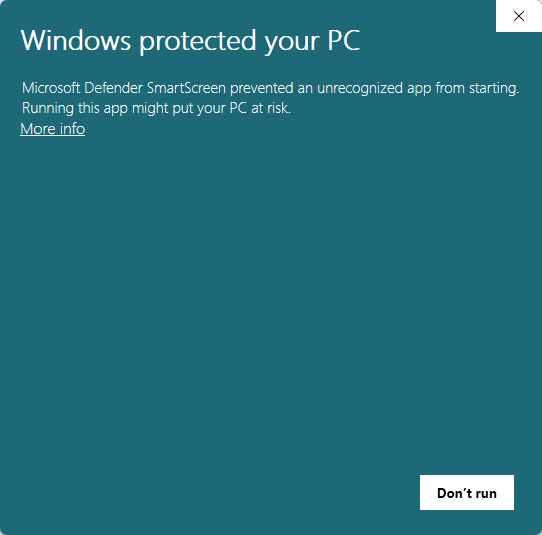
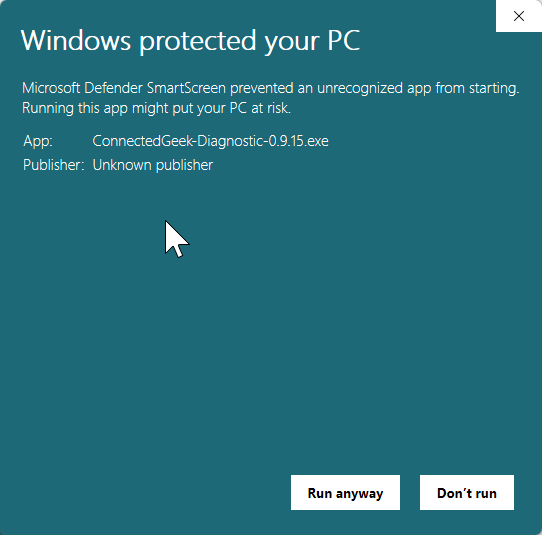
It is a blue screen that says “Windows protected your PC”. It is not telling you the file is dangerous. It is telling you that Windows does not recognise who published it, because we have not bought a code signing certificate yet.
You should not simply click past warnings like this, and we are not going to tell you to. Check the file first. It takes a minute and it proves something a signature would not: that the exact file on your computer is the one we published.
Step 1. Check the file is ours
Every file we publish has a SHA-256 fingerprint, listed on the download page under Verify what you downloaded. If the fingerprint of your copy matches, nothing has been altered between our server and your computer.
- Open the folder you downloaded to, usually Downloads.
- Hold Shift, right-click an empty part of the folder, and choose Open PowerShell window here or Open in Terminal.
- Type this and press Enter. The
*stands in for the version number, so you do not have to type it:Get-FileHash .\ConnectedGeek-Diagnostic-*.exe -Algorithm SHA256 - Compare what it prints with the fingerprint below. Upper and lower case do not matter. Nothing else may differ.
- If nothing prints at all, the file is not in this folder. PowerShell says nothing when a wildcard matches no files, so an empty result means you are in the wrong place, not that the check passed. Go back to step 1 and open the folder the file actually downloaded to.
The fingerprint to compare against is listed on the download page under Verify what you downloaded, beside the file name.

Step 2. Unblock it
Windows marks every file that came from the internet. Clearing that mark is you telling Windows you know where this one came from.
- Right-click the file and choose Properties.
- At the bottom of the General tab, tick Unblock.
- Click Apply, then OK.
If there is no Unblock box, there is nothing to do in this step. Some download folders never add the mark in the first place, and it is also gone once you have run the file. Either way, skip to step 3.

Step 3. Run it
Double-click the file. If the blue screen appears, this is what to do.
- Click More info. It is easy to miss, in small text under the message.
- A Run anyway button appears. Click it.
- Windows then asks for administrator permission. The tool needs it to read disk health, encryption status and network settings. Click Yes.
- The tool opens in your browser and starts checking. Nothing is sent anywhere unless you decide to send it.
This is not general advice
It applies to this file, from this page, with a fingerprint that matches. Nothing else.
Anything else that asks you to click past a Windows warning deserves your suspicion. That includes anyone who telephones you claiming to be from Microsoft, anyone who emails you a file you were not expecting, and any website that tells you your computer is infected. Microsoft does not call people. We will never ask you to disable a security setting.
The reason the warning exists at all is that we have not yet bought a code signing certificate. When we do, the warning will name Connected Geek rather than an unknown publisher, and it will fade as more people run the tool. Until then we would rather explain the warning honestly than pretend it is not there.
Would you rather not do any of this?
That is a reasonable position and it costs you nothing.
Call 248-648-1717 or email support@connectedgeek.net and a technician will run the diagnostic with you, or remotely, without you downloading anything at all.